You open a cabinet and find an RS-485 trunk with no labels. The drawings are from 2009. Nobody knows which addresses are in use. This is the job of a Modbus scanner: it asks every possible address and shows you which devices answer.
In this guide you will learn how a Modbus scanner works, what it can and cannot find, and how to turn a scan into a clean bus map. We use the scan in ModbusMate, our free Modbus tester that runs in the browser.
What is a Modbus scanner?
A Modbus scanner is a master tool that walks through slave addresses one by one. For each address it sends a request and waits. If a device answers, the scanner lists it. If nothing comes back, it moves on.
On a serial line, valid slave addresses run from 1 to 247. Address 0 is broadcast, and slaves never reply to it. Addresses 248 to 255 are reserved. So a full scan covers up to 247 addresses at one set of serial settings.
The result is simple: a list of unit IDs that are alive. That list is the start of every good bus map.
When you need a Modbus scanner
Scanning is not something you do every day. But when you need it, nothing else will do. Typical cases:
- Undocumented buses. You inherited a site and the address list is missing or wrong.
- Replaced devices. A spare part arrives with a factory address that clashes with a device on the bus.
- Address conflicts. Two devices share one address. Replies collide and look like noise.
- Commissioning checks. You want proof that every device on the trunk answers before handover.
- Unknown factory settings. A device came from stock and nobody wrote down its address.
In each case, a scan replaces hours of guessing with a few minutes of facts.
What a scan can and cannot find
A scanner is honest, but it is not magic. Know its limits before you trust the result.
It only finds devices at your serial settings
A device with a different baud rate or parity will not understand the request. So it stays silent. If you expect more devices than you found, repeat the scan with other common settings.
It cannot see a broken cable
If the cable is open, the scan finds nothing beyond the break. Check the wiring first. Our guide on how to test Modbus RS485 communication walks through the basics.
It may struggle with address conflicts
When two devices share one address, both may answer at once. The replies overlap and fail the checksum. You may see CRC failures at that address instead of a clean hit. That pattern is a strong hint of a conflict.
It does not tell you what the device is
A scan says “someone answers at address 12”. It does not say “this is a room controller”. For that, you need the next step: identification.
How to scan a Modbus RTU bus with ModbusMate
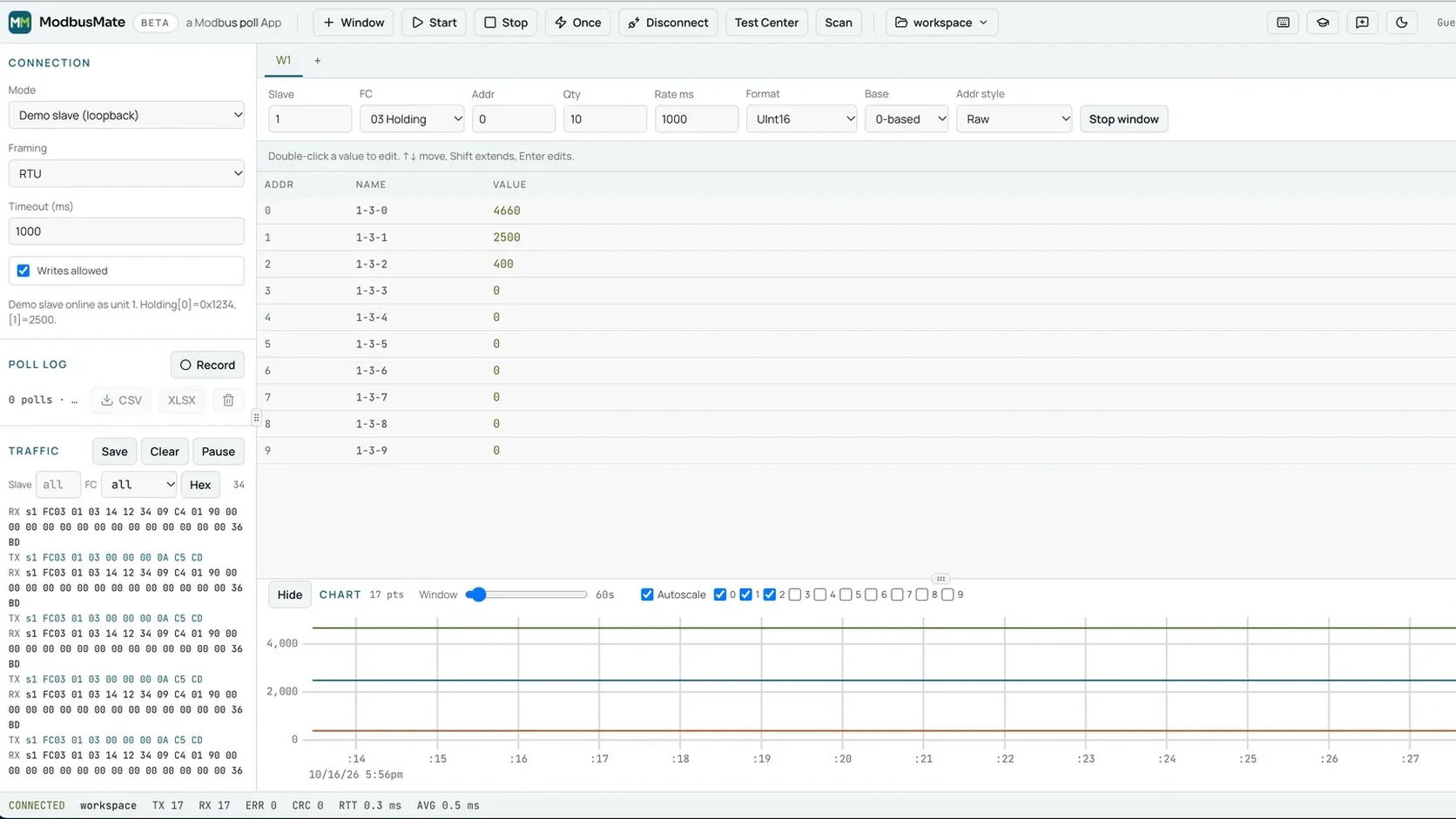
ModbusMate has a device scan built in. Scan runs through unit IDs and shows which slaves answer. Here is the full process.
Step 1: Connect the adapter
Plug a USB to RS-485 adapter into your laptop. Any adapter your computer shows as a serial port will work. Wire it to the trunk, ideally at one end of the line.
Step 2: Open the app and set the port
Open ModbusMate in Chrome, Edge or Opera. Pick the serial port. Set baud rate, parity, stop bits and RTU or ASCII to the values you expect on the bus.
Not sure what those are? Start with the values in the device datasheets. Our article on key Modbus settings for sensor configuration explains each one.
Step 3: Run the scan
Start the scan and let it run through the unit IDs. The list of slaves that answer builds up as it goes.
Keep the traffic log open while it runs. You will see each request go out. Answers show in hex with a CRC check for RTU or an LRC check for ASCII.
Step 4: Read the result
You now have a list of live addresses. Compare it with what you expected.
| Result | What to do next |
|---|---|
| All expected devices found | Great. Build your poll windows. |
| Fewer devices than expected | Repeat at other baud rates or parity. Check wiring and termination. |
| CRC failures at one address | Suspect two devices with the same address. Disconnect one and scan again. |
| No devices at all | Check A/B polarity, the adapter port and the serial settings. |
Step 5: Turn the scan into a bus map
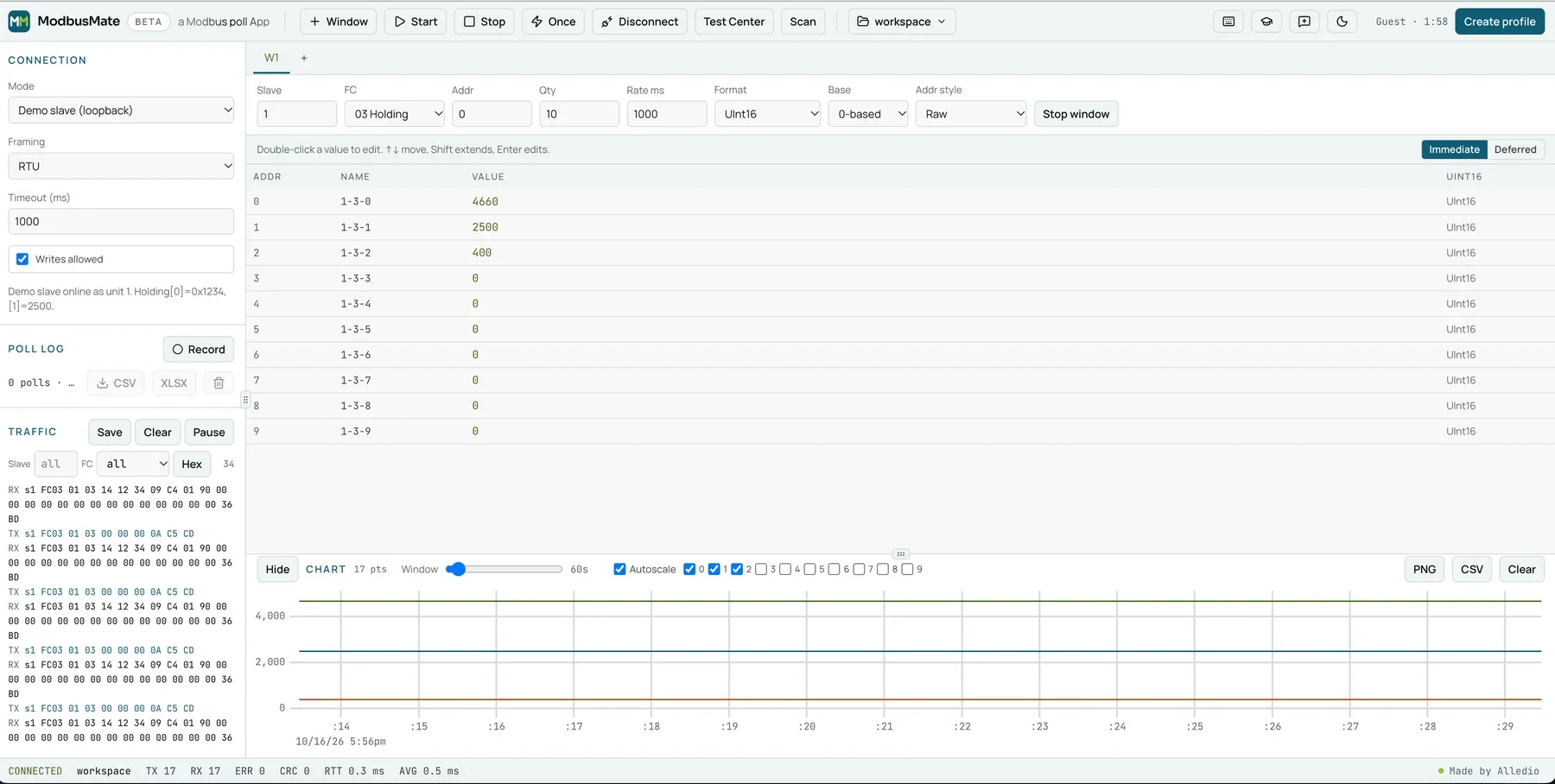
For each address you found, open a poll window. Give it the slave ID, function code, start address and quantity from the device datasheet.
Name the key registers with Shift+F2. Then save the whole setup with Ctrl+S as a workspace. Next time, Ctrl+O brings the full map back.
Identify what you found
A list of addresses is a good start. Now you want to know what each device is. Two standard function codes can help, if the device supports them.
- Function code 11 (0x11), Report Server ID. Many serial devices answer with an ID and a run status.
- Function code 2B (0x2B), Read Device Identification. With MEI type 0x0E, a device can return vendor name, product code and version.
Both are presets in the ModbusMate Test Center. The Test Center builds raw requests for function codes 01 to 06, 08, 0B, 0F, 10, 11, 16, 17 and 2B. So you can send an identification request to each address with a few clicks.
Not every device supports these codes. If a device answers with an exception, fall back to its datasheet and read a known register instead.
Fixing an address conflict
Conflicts are common after a repair. A new device ships with address 1, and address 1 is already taken. Here is a clean way to fix it.
- Find the conflict. Scan the bus. Look for CRC failures or odd replies at one address.
- Isolate the new device. Disconnect it, or connect your adapter to it alone.
- Change its address. Use the method in its manual. On many devices, you write a new address to a configuration register.
- Scan again. Reconnect the device and confirm that both addresses answer cleanly.
Be careful on a live building. One wrong write can change the wrong device. In ModbusMate, keep “Writes allowed” unticked until you are sure. Monitoring only blocks every write.
For more on how many devices a segment can take, read our deep dive into Modbus busline device limits.
Example: mapping an old trunk
Here is how a scan plays out on a typical job. The numbers are an example, not a real site.
The drawings list ten room units on one trunk. You connect at the first cabinet and scan at the documented settings. Eight addresses answer. One address shows CRC failures. One device is missing.
Now you have three clear tasks instead of one vague problem:
- The CRC address. Two devices probably share it. You isolate them and give one a free address.
- The missing device. You scan again at another common baud rate. It answers. Someone replaced it and never changed the settings.
- The map. You open a poll window for each address, name the registers and save the workspace.
The whole job takes less time than it took to find the cabinet key.
Tips for faster, cleaner scans
A few habits make scanning smoother:
- Scan from one end of the line. You see the whole trunk, and termination is easier to check.
- Know your expected count. Write down how many devices should be there before you start.
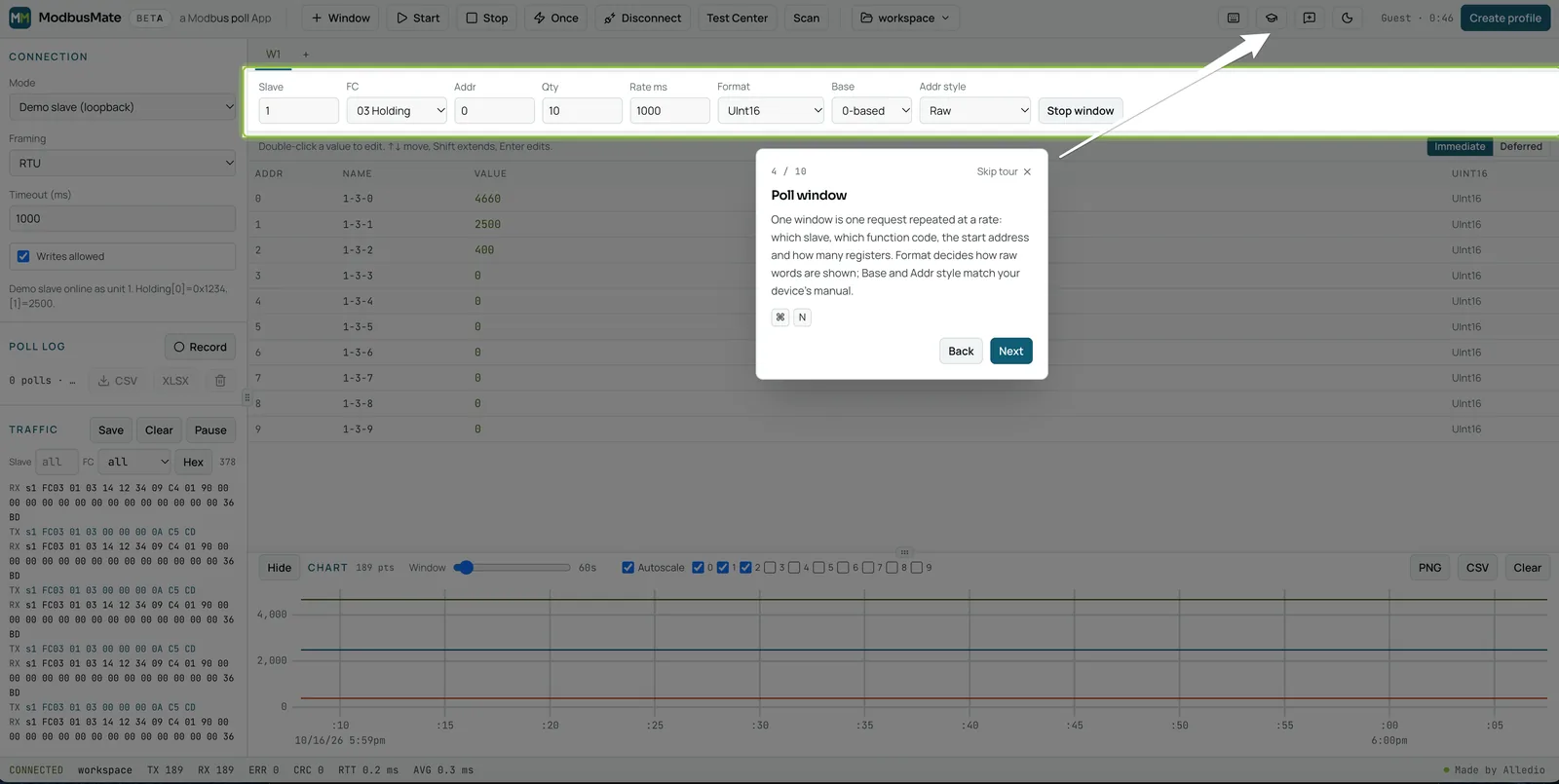
- Watch the counters. The status bar counts TX, RX, errors, CRC failures and round-trip time.
- Save the traffic log. Use Save in the traffic log as proof of what you found.
- Share the map. Export the workspace as JSON and send it to the next engineer on site.
Free Modbus scanner vs. paid tools
Many desktop tools include a scan. Some are free, some are paid, and most only run on Windows. ModbusMate is free and runs on Windows, macOS, Linux and ChromeOS, in Chrome, Edge or Opera.
The scan is not a separate app. It sits next to the poll windows, the traffic log, the charts and the Test Center. So you go from “who is there?” to “what are they saying?” without switching tools.
Comparing options? See our article on the Modbus Poll alternative for a feature table. Or start with our pillar guide to the Modbus tester.
What it supports today
- Protocols: Modbus RTU and Modbus ASCII over RS-485 or RS-232. Modbus TCP is coming soon.
- Browsers: Chrome, Edge and Opera on desktop. Firefox, Safari, phones and tablets are not supported.
- Hardware: any USB serial adapter your computer shows as a serial port.
- Baud rates: 300 to 3,000,000.
Because TCP is not supported yet, you cannot scan Modbus TCP gateways with ModbusMate today.
Scanning a bus with Alledio devices
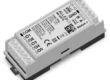
Our Alledio room devices speak Modbus RTU. A common bus has room units, room controllers and a relay extender on one trunk. A scan is the fastest way to check that each one answers before you hand the building to the BMS team. See the Alledio MX-EXT Modbus Relay Extender for an example of a device you might find on such a trunk.
FAQ
What does a Modbus scanner do?
It sends a request to each slave address in turn and lists the addresses that answer. On a serial line, that is up to 247 addresses at one set of serial settings.
Why does my scan find no devices?
The most common causes are swapped A and B wires, the wrong serial port, or a baud rate or parity that does not match the devices. Fix those and scan again.
Can a Modbus scanner find devices at different baud rates?
Not in one pass. A device only answers at its own serial settings. Repeat the scan with each baud rate and parity you expect on the bus.
How do I find out what a device is after a scan?
Try function code 11 (Report Server ID) or 2B (Read Device Identification) from the Test Center. If the device does not support them, read a known register from its datasheet.
Is the scanner in ModbusMate free?
Yes. ModbusMate is free. You start with a five-minute guest session and then create a free profile with your name and email.
Can I scan Modbus TCP devices?
Not yet. Modbus TCP is coming soon. Today ModbusMate scans Modbus RTU and ASCII devices over serial.
Map your bus today
Stop guessing addresses one by one. Run a scan, build your poll windows and save the map for the next visit.
Open ModbusMate and scan your bus
For the full feature list, visit the ModbusMate product page. The official address rules are in the Modbus Organization specifications.