Getting a BACnet sensor installed is one thing. Knowing it is actually working correctly is another. Whether you are commissioning a new installation or troubleshooting an existing one, having a clear, methodical process for testing your Alledio BACnet Sensor saves time, eliminates guesswork, and turns a potentially frustrating afternoon into a clean, confident sign-off.
This guide covers sensors with both BACnet MS/TP and BACnet/IP protocols, walks you through practical diagnostic steps, introduces free tools you can use today, and answers the most common questions that come up during BACnet sensor testing.
Testing the Alledio BACnet MS/TP Sensor — Step by Step
BACnet MS/TP (Master-Slave/Token-Passing) communicates over an RS-485 serial bus. Think of it like a conversation in a room where only one person can speak at a time — the “token” determines whose turn it is. If your wiring, addressing, or baud rate is off, the entire conversation collapses.

Step 1: Inspect the Physical Wiring
Verify the RS-485 terminals on the Alledio BACnet Sensor. The sensor uses a 2-wire or 3-wire RS-485 connection. Confirm that the A (non-inverting) and B (inverting) terminals are wired correctly and consistently across the entire bus segment. A swapped A/B connection is one of the most common — and easiest to miss — causes of communication failure.
Use a twisted-pair cable, ideally shielded. For longer runs or electrically noisy environments, install a 120-ohm termination resistor at each physical end of the RS-485 segment. Missing or duplicate termination causes signal reflections that corrupt data and are notoriously difficult to diagnose without proper tools.
Confirm the sensor is powered correctly — check the supply voltage against the Alledio sensor specifications and verify the power supply is stable and properly grounded.
Step 2: Configure the Device Address and Baud Rate
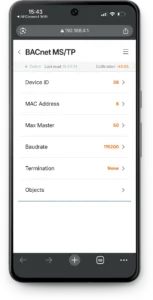
Every device on a BACnet MS/TP network must have a unique MAC address (typically 1–127 for master devices). On the Alledio BACnet Sensor, the device address is configured via DIP switches or through the sensor’s configuration interface. Double-check that no two devices on the same segment share the same address — this is a silent conflict that causes intermittent, hard-to-trace failures.
Match the baud rate across all devices on the segment. Common values are 9600, 19200, 38400, and 76800 bps. A single device running at the wrong baud rate can bring down communication for the entire segment.
Step 3: Scan the Network Using BACnet Diagnostic Software
Connect a laptop or PC to the RS-485 bus using a USB-to-RS-485 converter. Open a BACnet diagnostic tool (see the free software section below) and configure it to match your network baud rate. Initiate a Who-Is broadcast and observe whether the Alledio sensor responds with an I-Am message.
If no response is received, verify the COM port assignment and baud rate settings in your software. If the device still does not appear, return to Step 1 and 2 before proceeding further.
Step 4: Read Present Values from BACnet Objects
Once the device is discovered, navigate to its object list. The Alledio BACnet Sensor exposes multiple measurement points as BACnet objects — temperature, humidity, pressure, VOC, CO2, and particulate matter (PM). Read the Present Value property of each object and verify the values fall within a physically plausible range.
A room temperature reading should reflect ambient conditions. A value stuck at 0 or reporting an error code typically signals a sensor fault, an incorrect object mapping, or a wiring issue on the sensor’s internal measurement circuit.
Step 5: Confirm Consistent Data Updates Over Time
Monitor the Present Values over a few minutes. Most BACnet sensors update on a defined Change of Value (COV) increment or a polling cycle. If values are frozen or updating erratically, investigate for wiring faults, address conflicts, or a marginal power supply. Consistent, smooth updates confirm the sensor is behaving as expected.
Testing the Alledio BACnet/IP Sensor — Step by Step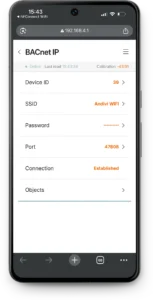
BACnet/IP communicates over a standard Ethernet/IP network, using UDP on port 47808 (written as 0xBAC0 — yes, that is intentional and rather clever). Unlike MS/TP’s shared serial bus, BACnet/IP rides on your existing network infrastructure, which introduces a different set of variables.
Step 1: Confirm Basic Network Connectivity
Before opening any BACnet tool, ping the sensor’s IP address from your PC. If the sensor does not respond, address the network layer first — check the cable, switch port, and VLAN assignment. A BACnet problem that is actually a network problem will not be solved with BACnet tools.
Verify the sensor’s IP address, subnet mask, and default gateway through the Alledio sensor configuration interface. Misconfigured network settings are the single most common reason a BACnet/IP device is invisible to discovery tools.
Step 2: Check Firewall and UDP Port Access
Confirm that UDP port 47808 is open on any firewalls or managed switches sitting between the sensor and your diagnostic PC. BACnet/IP relies on UDP broadcasts for device discovery, and many enterprise firewalls block UDP traffic by default.
When in doubt, connect the diagnostic PC directly to the same subnet as the sensor to eliminate firewall variables from your initial test. Isolating the network scope simplifies the diagnosis considerably.
Step 3: Discover the Device Using BACnet Software
Open your BACnet/IP diagnostic tool and send a Who-Is broadcast on the local subnet. The Alledio sensor should respond with an I-Am message containing its Device Instance number. Confirm this matches the value configured on the sensor itself.
If the device does not appear, verify that your PC is bound to the correct network adapter. On a laptop with both Wi-Fi and Ethernet active, BACnet software may default to the wrong interface — a small setting that causes a lot of confusion.
Step 4: Read and Validate Object Values
Browse the device’s object list and read the Present Value of each BACnet object. The Alledio multi-sensor provides live readings for temperature, humidity, pressure, VOC, CO2, and particulate matter. Cross-reference these values against a trusted reference instrument or known environmental conditions.
A frozen value, a zero reading, or an out-of-range result typically points to a sensor fault condition, a calibration issue, or an incorrect object configuration on the device.
Step 5: Test COV Subscriptions
For a production environment, subscribe to Change of Value (COV) notifications from the sensor objects. A successful COV subscription confirms that the sensor is not just passively readable but actively communicating — sending updates to your BACnet controller or BMS as values change. This is the final checkpoint that validates end-to-end integration.
Free BACnet Software Tools Worth Using
You do not need expensive proprietary software to diagnose a BACnet sensor. Several reliable free options exist:
YABE (Yet Another BACnet Explorer) — the most widely used free BACnet browser, supporting both MS/TP and BACnet/IP; clean interface and actively maintained
BACowl — a lightweight BACnet browser with a simple UI, useful for quick device discovery and object browsing on BACnet/IP networks
More information on BACnet Sensor Testing Tools can be found in our blog post: BACnet Sensor Testing: The Tools you Need.
Frequently Asked Questions for BACnet Sensor Testing
1. What is a Device Instance and why does it matter?
The Device Instance is a globally unique identifier for a BACnet device across the entire BACnet network. Each Alledio sensor must have a unique Device Instance to avoid conflicts with other devices.
2. Why is the Alledio sensor not responding to a Who-Is broadcast?
The most common causes are incorrect baud rate (MS/TP), wrong subnet or blocked UDP port (BACnet/IP), duplicate device address, or a power supply issue.
3. How do I verify RS-485 termination is correct?
Measure resistance between A and B lines with all devices powered off. You should read approximately 60 ohms if two 120-ohm termination resistors are correctly installed at each end of the bus.
4. Can I test BACnet MS/TP without a USB-to-RS-485 adapter?
Not directly from a PC. A USB-to-RS-485 hardware adapter is required to bridge the USB interface to the RS-485 electrical standard. Inexpensive adapters are widely available and sufficient for diagnostic work.
5. What is a COV subscription and why should I test it?
COV (Change of Value) is a BACnet mechanism where the device pushes notifications when a value changes beyond a defined threshold. Testing it confirms active, two-way communication rather than just passive readability.
6. What BACnet object types does the Alledio sensor expose?
The Alledio BACnet Sensor uses Analog Input objects for all measured values, each with a Present Value property that reflects the current measurement.
7. How do I reset the Alledio BACnet Sensor to factory defaults?
Refer to the Alledio sensor documentation for the specific reset procedure. Factory reset is typically used when device address or baud rate settings are unknown or incorrectly configured.
8. What causes erratic or fluctuating readings on a BACnet MS/TP sensor?
Common causes include electrical noise on the RS-485 bus, loose terminal connections, insufficient cable shielding, or an unstable power supply.
9. Can two Alledio sensors coexist on the same BACnet/IP network?
Yes — provided each has a unique IP address and a unique Device Instance number. Without both being unique, devices will conflict and communication will be unreliable.
10. How frequently does the Alledio BACnet Sensor update its values?
Update frequency depends on the configured COV increment and the polling interval set by your BACnet controller or BMS. Refer to the Alledio sensor documentation for specific timing parameters and how to adjust them.
When the Usual Fixes Do Not Cut It
Sometimes, even after checking every wire, confirming every address, and verifying every subnet setting, things still refuse to cooperate. BACnet networks can be surprisingly unforgiving about configuration details that seem trivial on paper but matter enormously in practice. If you have worked through every step in this guide and the Alledio BACnet Sensor still is not behaving as expected, the Andivi support team is available to help. They have hands-on experience with the full range of BACnet installation scenarios — from complex multi-device MS/TP segments to BACnet/IP deployments with tricky network configurations. Reaching out is not a last resort; it is simply making smart use of the expertise that is available to you.